
Managing Google Chrome Relaunch Notifications via Windows Registry
Keeping browsers up to date is crucial for security and performance, especially in enterprise environments. Google Chrome offers a way for IT administrators to enforce or recommend browser restarts after updates using Windows Registry keys. This ensures users are running the latest version without unnecessary delays.
How It Works
Chrome supports two registry paths for policy configuration:
HKEY_CURRENT_USER\Software\Policies\Google\ChromeHKEY_LOCAL_MACHINE\SOFTWARE\Policies\Google\Chrome
These paths allow you to define policies that control Chrome’s behavior. One such policy is RelaunchNotification.
RelaunchNotification Policy
This policy determines how Chrome notifies users about the need to relaunch the browser:
- 1 — Show a recurring prompt indicating a relaunch is recommended
- 2 — Show a recurring prompt indicating a relaunch is required
You can also set the frequency of these prompts using:
- RelaunchNotificationPeriod (milliseconds)
Example:3600000= 1 hour
Example Registry Script
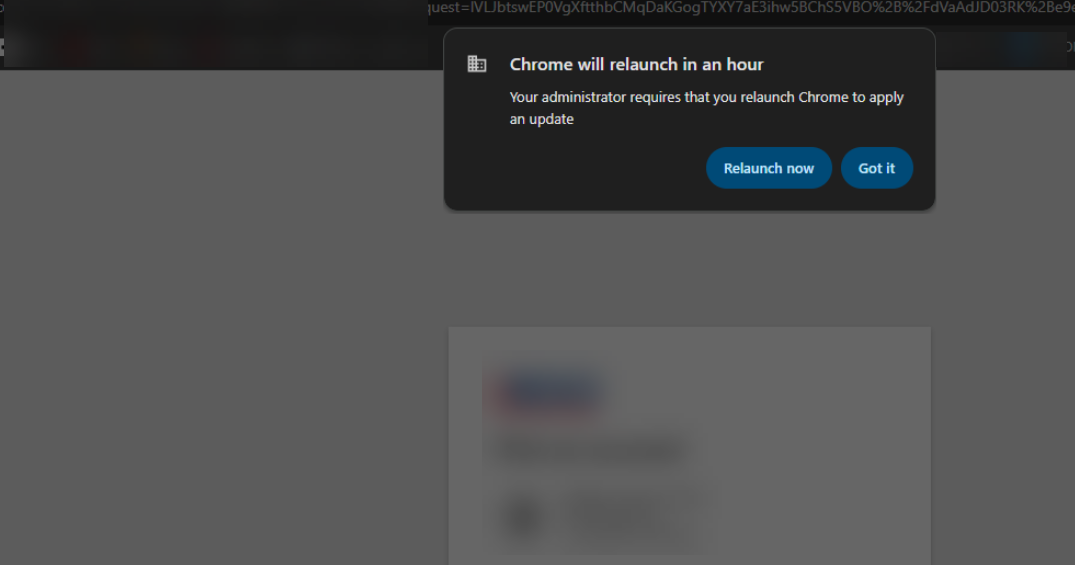
To enforce a required relaunch every hour, you can use the following script in a post-installation process:
Note: This will take effect on the next Chrome update, not the current one.
reg add "HKEY_LOCAL_MACHINE\SOFTWARE\Policies\Google\Chrome" /v RelaunchNotification /t REG_DWORD /d 2 /f
reg add "HKEY_LOCAL_MACHINE\SOFTWARE\Policies\Google\Chrome" /v RelaunchNotificationPeriod /t REG_DWORD /d 3600000 /f
This is what users will see:
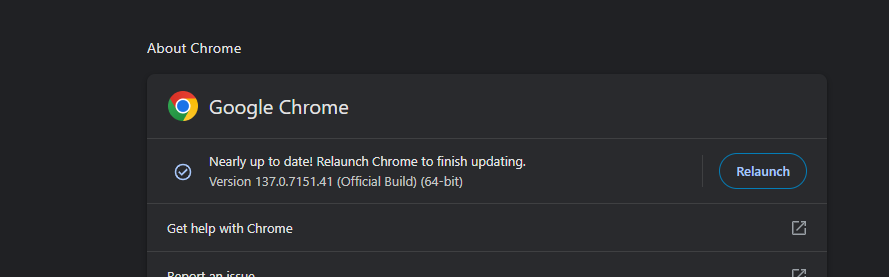
We can also see the Chrome update here:
Deploying Chrome Relaunch Policies via Intune
If you’re managing devices with Microsoft Intune, you can configure the same policies using Chrome’s ADMX templates. Here’s how:
- Download the Google Chrome Enterprise Bundle.
- Extract the
chrome.admxandchrome.admlfiles from theConfiguration\admxfolder. - In the Microsoft Intune admin center, go to Devices > Configuration profiles and click + Create profile.
- Select:
- Platform: Windows 10 and later
- Profile type: Templates > Imported Administrative Templates
- Import the required ADMX files in this order:
windows.admxgoogle.admxgooglechrome.admx
- Once imported, create a new configuration profile and search for the Relaunch policies.
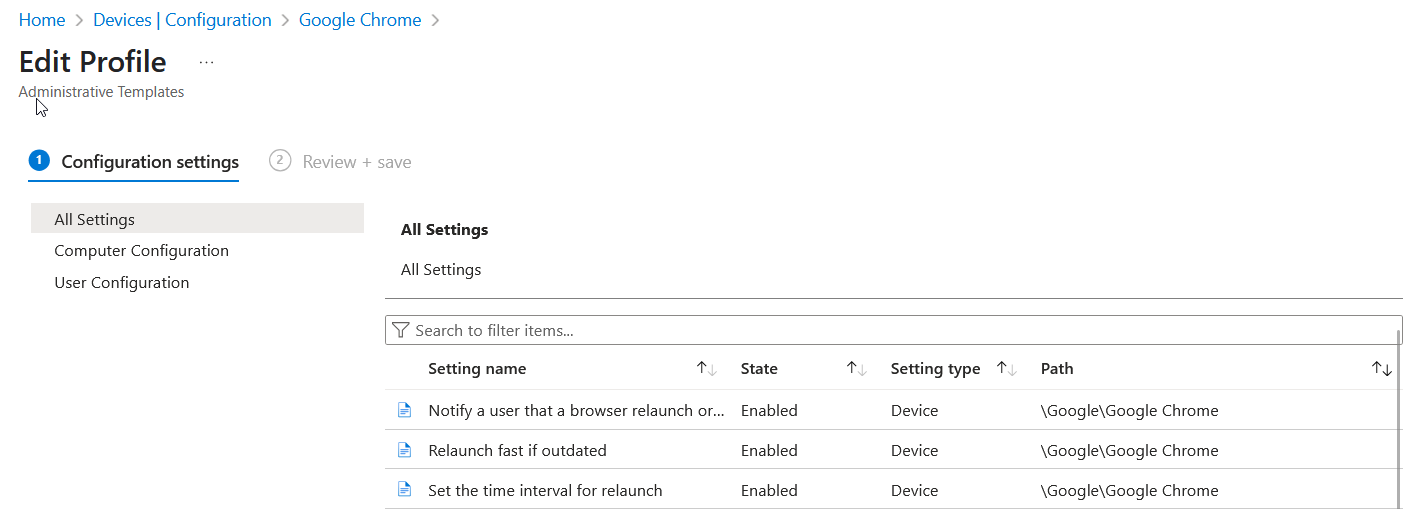
Assign the profile to your target device or user group.
For full documentation, visit the official Chrome Enterprise policy page:
https://chromeenterprise.google/policies/?policy=RelaunchNotification