
ADR "Best Practice"
The 95% Solution: How to Actually Setup Your ADRs
Someone recently asked me what’s the best way to setup ADRs (Automatic Deployment Rules). So, I’m going to run through a quick post on what I configure in 95% of the environments I manage.
There are always exceptions, but the following setup is likely what I would deploy in almost any environment.
The Strategy
You are going to build 4 different ADRs.
I’ve had conversations with people I respect greatly in the Endpoint Management space, and we agree on the majority of the config here. Sure, there are environments where something different is needed, but setting these up correctly is key.
We need to discuss a couple of things first:
- What updates get applied (OS, Defender definition updates, third-party).
- When updates get applied (Maintenance windows, update rings, etc.).
- How often you should Sync (ADR run vs. SUP Sync).
- Why? (The most important part).
Global Settings
At a minimum, sync your SUP daily, but I’d recommend every 8 hours.
1. Windows Updates
Scope: OS updates, .NET framework, and whatever else is typically added on “Patch Tuesday.”
The Rings (When)
Split this into 3 different groups:
- Test - All Devices (0 day delay)
- Broad - All Devices (3 day delay)
- Production - All Devices (7 day delay)
- Server collections: Must adhere to maintenance windows (if needed).
- Create maintence windows in other collections: Test - Server, Broad - Server, Prod - Server
- Add maintence windows to these and nest them in the patching collections.
- Workstation collections: Generally shouldn’t need maintenance windows.
Frequency
Run the ADR: Daily. Generally, MS only sends updates on “Patch Tuesday.” However, Out-of-Band (OOB) patches do happen. These are usually critical, so they should be applied ASAP anyway, while still going through your update rings.
The “Why”
OS Updates generally require a reboot (although MS is looking to do away with this for some updates). These can be inconvenient for some companies, but good news: it happens once a month (usually, unless it’s an OOB update).
Additional settings
Here we are going to add the >=1 for Required, it’s very likely that the overwhelming majority of your fleet is the same OS. Once one device checks in with ConfigMgr and scans updates, it will report back it needs the update. The update will then get added to the Software Update Group and get deployed. This setting prevents your ConfigMgr environment from downloading all Patch Tuesday Updates
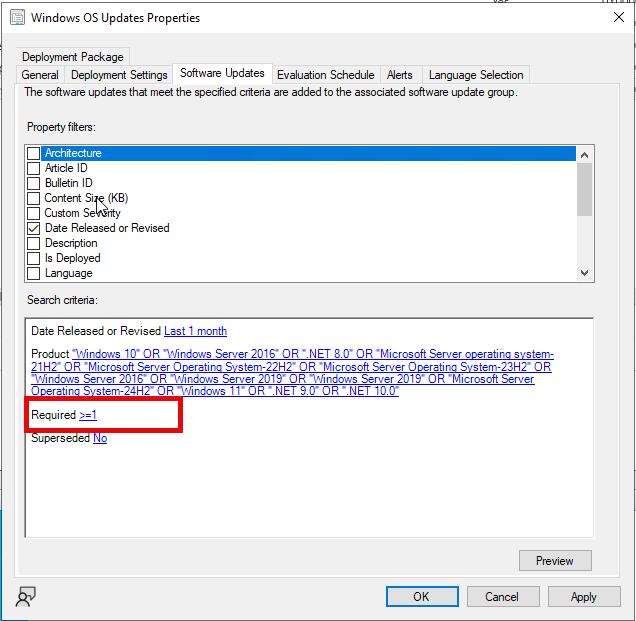
Where I see people go wrong: Creating multiple ADRs for servers and workstations is not required. Sending server updates to workstations will show as ’not required’ and the client will simply pass on the installation. People over-complicate things by creating multiple ADRs for different collections. At best, this leads to multiple ADRs requiring modification. At worst, you get different patches hitting Test vs. Production. Keep it simple.
2. Office Updates
Scope: O365 updates, etc.
The Rings (When)
Split this into 3 different groups:
- Test - All Devices (0 day delay)
- Broad - All Devices (3 day delay)
- Production - All Devices (7 day delay)
- Server collections: Should adhere to maintenance windows (if needed).
- Note: Remember those maintenance windows that were created in your server collections above? If a device has a maintenance window applied to it in another collection, it will still adhere to it here.
Frequency
Run the ADR: Daily. Same logic as above—usually Patch Tuesday, but if OOB patches hit, you want them moving through your rings immediately.
The “Why”
These tend to fail the download more than any other updates. They can cause errors, and if these error out, you usually just need to try troubleshooting or syncing again.
Additional settings
This one can be tricky, either add the >=1 requirement or consider adding a title filter for the channel of updates you use in your environment.
Where I see people go wrong: “Why not package these with the OS updates?” Because the failures can cause the entire ADR to fail. When an ADR fails, you have to dig through the logs, etc. If it’s just Office updates, it’s likely failing the CDN Download. If they are separate, you can just rerun it, and it should be fine without holding up your OS security patches.
3. Defender Updates
Scope: Defender definitions (if applicable—let’s be honest, your EDR solution is doing this already unless you are using Defender).
The Rings (When)
Split this into 3 groups:
- Test - All Devices (0 hour delay)
- Broad - All Devices (2 hour delay)
- Production - All Devices (4 hour delay)
Maintenance Windows: None. Zero. Send to everyone daily.
- However, I’d still test with about a ~4 hour delay into Prod. Remember CrowdStrike?
- Force the deployment to override the maintenance window here.
Frequency
Run the ADR: Every 8 hours. Generally, MS sends updates every 8 hours. You should pick them up and send them all the time.
The “Why”
These need to go out daily. They will get added in the background and the users will never be interrupted for this. It’s better to be aggressive here as they do not cause reboots.
Additional settings
Here we are going to add the title filter “Broad.” This setting prevents your ConfigMgr environment from downloading all different versions of the Defender Updates (there are a lot of them). On top of that, we are going to bypass all maintence windows here. These need to go out ASAP.
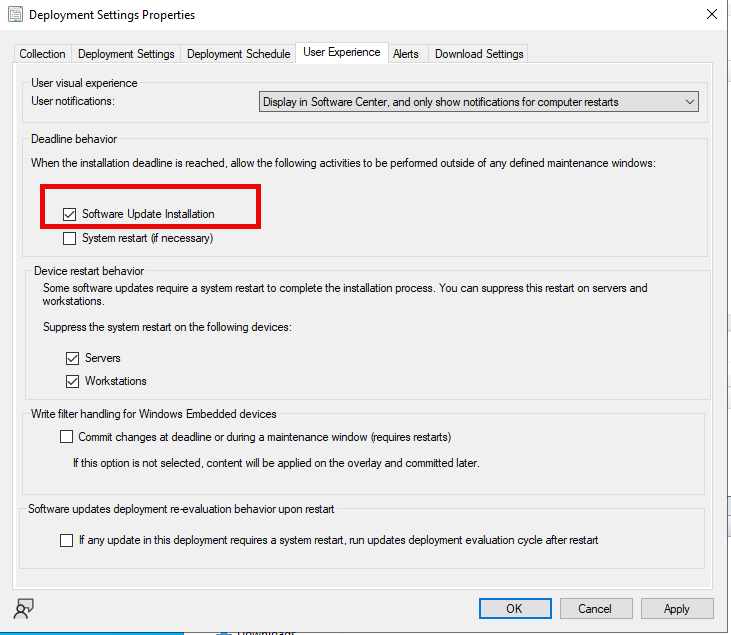
Where I see people go wrong: Companies hear the word “update” and think “reboot.” That’s not the case here. Send these all the time; better safe than sorry. Your Defender updates will not be noticed by anyone.
4. Third-Party Updates
Scope: Browsers, third-party software, anything that’s not in the above ADRs.
The Rings (When)
Split this into 3 groups:
- Test - All Devices (0 day delay)
- Broad - All Devices (3 day delay)
- Production - All Devices (5 day delay)
Maintenance Windows: None. Send to everyone daily.
Frequency
Run the ADR: Daily. Vendors send updates whenever they feel like it. Keep your devices up to date.
The “Why”
Third-party updates generally do not require a reboot.
I say “Generally” because if the app is running and you attempt to run the MSI to update, it will throw the 3010 back to ConfigMgr. Use things like Manage Conflicting Processes (in PMPC) or Show-InstallationWelcome (PSADT). Additionally, You can suppress reboots in the deployment for servers if you are worried.
Additional settings
Here is where things git a bit tricky, we are going to add the “IsDeployed=No” flag and allow the ADR to create new SUGs every time. With these settings the ADRs will stagger themselves properly even if they overlap with updates. For example, if Chrome sends an update 3 days after the previous update (very common) the new Chrome update will not push out the old Chrome update out of the SUG. You will start to generate new SUGs every day new updates are released into the environment.
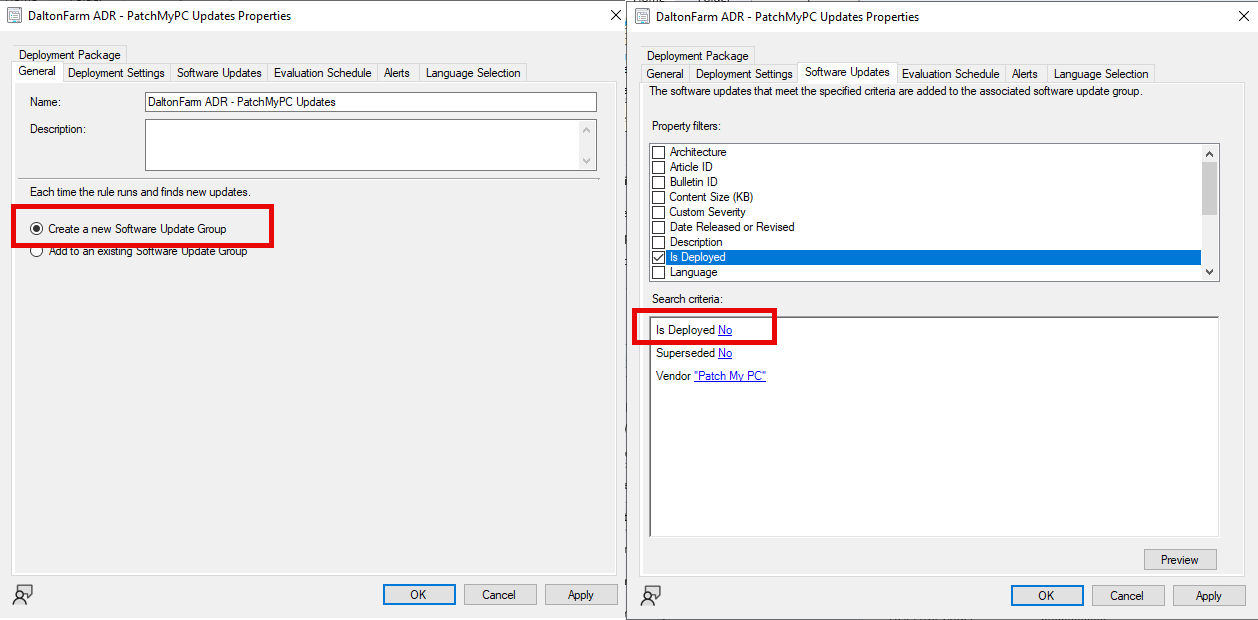
Where I see people go wrong: “Why send third-party updates to servers?” I can’t tell you how many vendors try to install Chrome because they don’t know how to bypass the IE security mode. This is bad. It shouldn’t be there. But if, for some godforsaken reason, you need Chrome or any other client software on your Servers, they should be patched all the time! Additionally, if you are using update rings, adding these to the same Software Update Group as OS updates can cause updates like Chrome to overlap, pushing out the delays so the last group never gets the update. Keep them separate.
Script Implementation
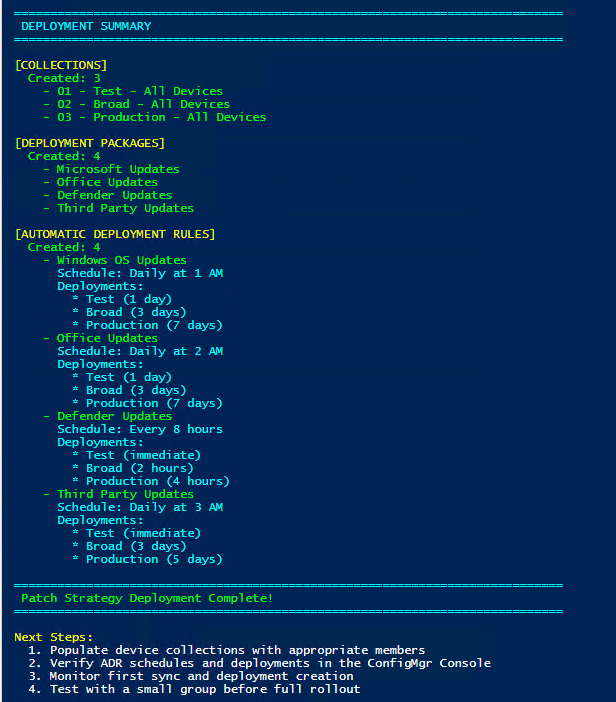
I created a script to give you a framework using the outlined ADRs above. This is meant to be the structure in which you build your ADRs around. Every environment will have it’s special requirements and considerations. You can modify the settings in ConfigMgr after the script is run in your environment.
https://github.com/ckdalton01/BuildADRFramework/blob/main/BuildADRFramework.ps1
Features
- Automated Infrastructure Setup: Creates all necessary collections, packages, and ADRs with a single command
- Phased Deployment Strategy: Test → Broad → Production deployment phases with configurable deadlines
- Multiple Update Categories: Separate ADRs for Windows OS, Office, Defender, and third-party updates
- Idempotent Operations: Safe to run multiple times - checks for existing objects before creating
- Easy Cleanup: Built-in
-Uninstallswitch to remove all created components