
AADConnectResultStatus
While running Microsoft Entra Connect Sync, I encountered a persistent configuration error that refused to clear:
“Retrying this operation may help resolve the issue.”
(Spoiler: it won’t.)
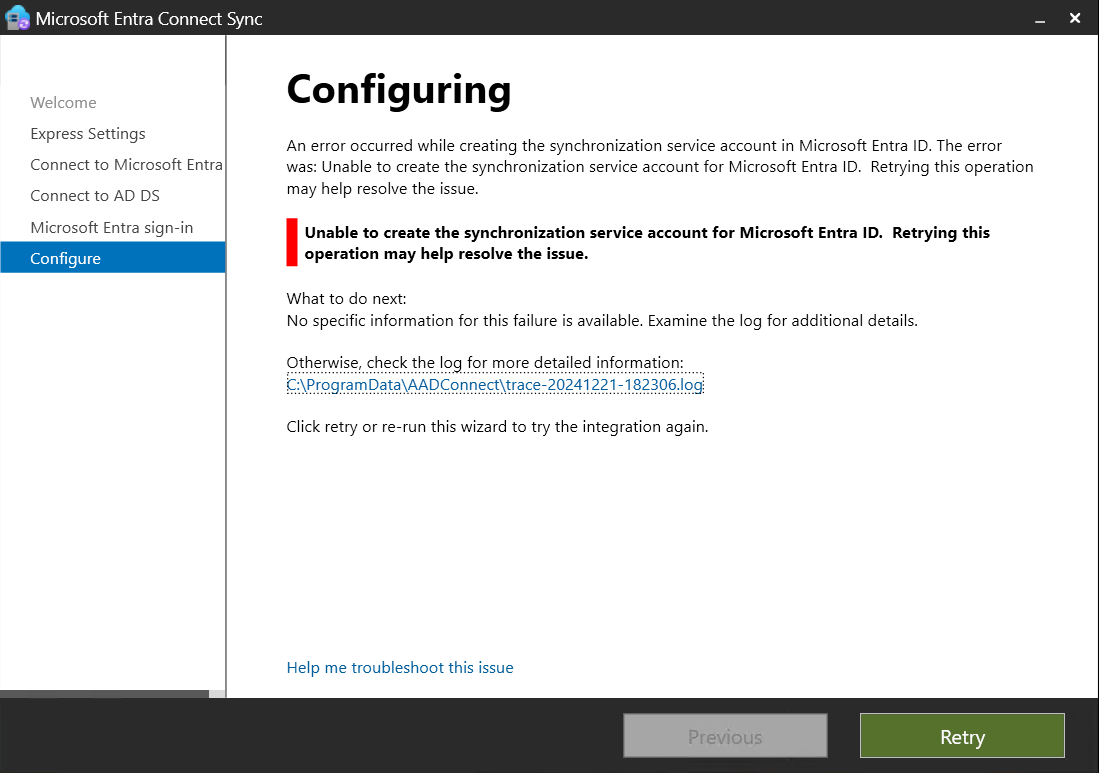
Everything looked correct during setup, but the sync would not complete. The issue turned out to be related to the synchronization service account Entra Connect tries to create.
Reviewing the Logs
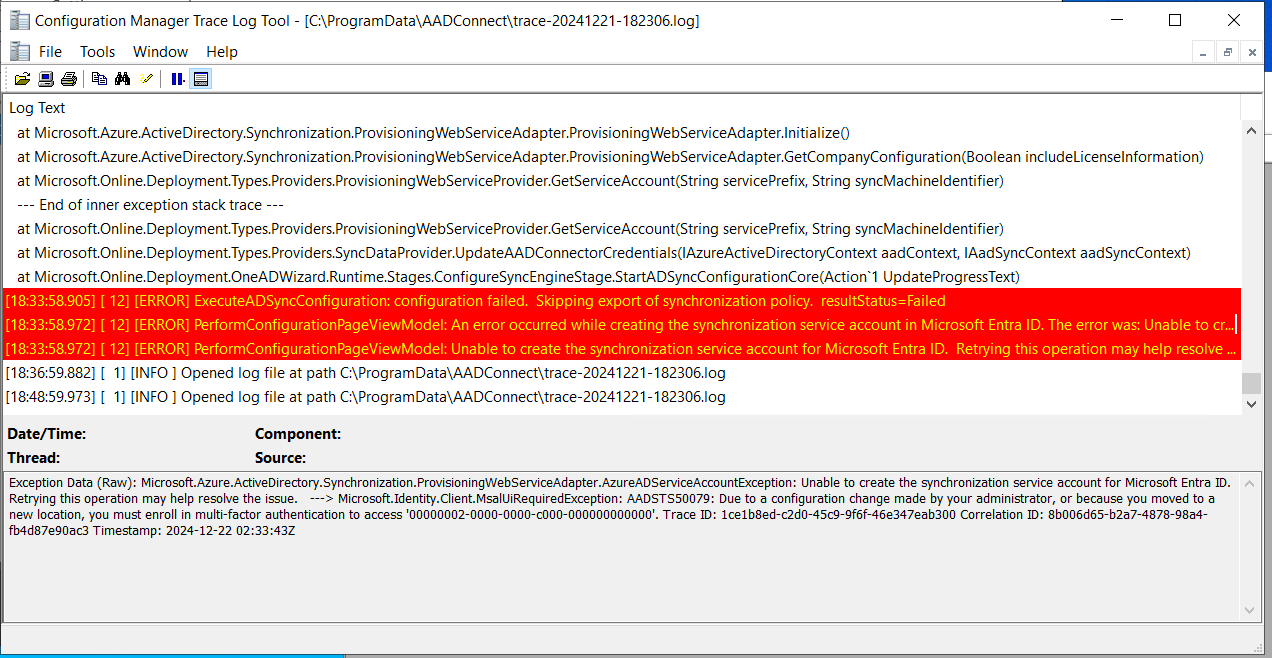
The wizard errors lacked detail, but the logs provided the necessary clue:
[18:33:58.905] [ 12] [ERROR] ExecuteADSyncConfiguration: configuration failed.
Skipping export of synchronization policy. resultStatus=Failed

[18:33:58.972] [ 12] [ERROR] PerformConfigurationPageViewModel:
Unable to create the synchronization service account for Microsoft Entra ID.
Retrying this operation may help resolve the issue.
The logs continued to repeat the error with no useful remediation guidance.
But this line stood out:
[18:32:57.115] [ 12] [WARN ] GetServiceAccount: service account authorization failed
for Sync_DC1_72476b2272e5@*****.onmicrosoft.com. Waiting for account to be provisioned.
Details: AADSTS50079: Due to a configuration change made by your administrator,
or because you moved to a new location, you must enroll in multi-factor authentication
to access ‘00000002-0000-0000-c000-000000000000’.
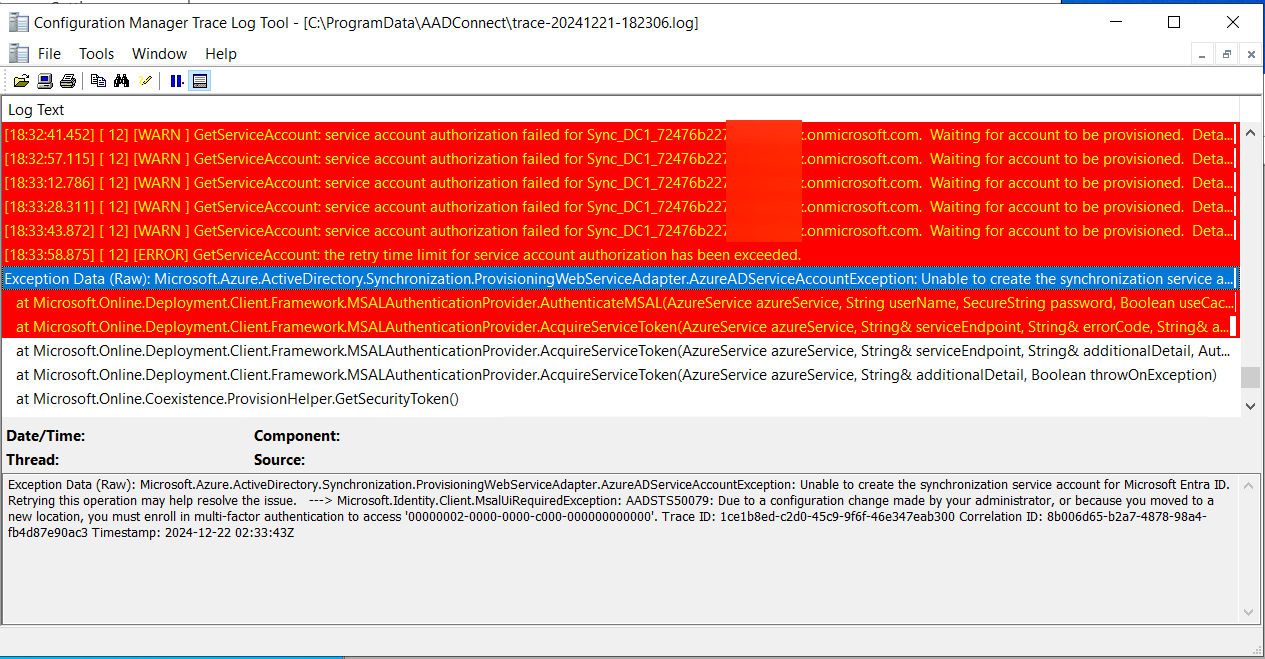
This was the key to the solution.
The Root Cause: Conditional Access Requiring MFA
The Entra Connect setup process creates a service account used for synchronization.
However, in this environment, a Conditional Access policy was in place:
- All Users → MFA requirement
- A small set of accounts was excluded
The newly created sync account was not excluded.
Because it was blocked by MFA, Entra Connect could not authenticate it, which caused the configuration to fail.
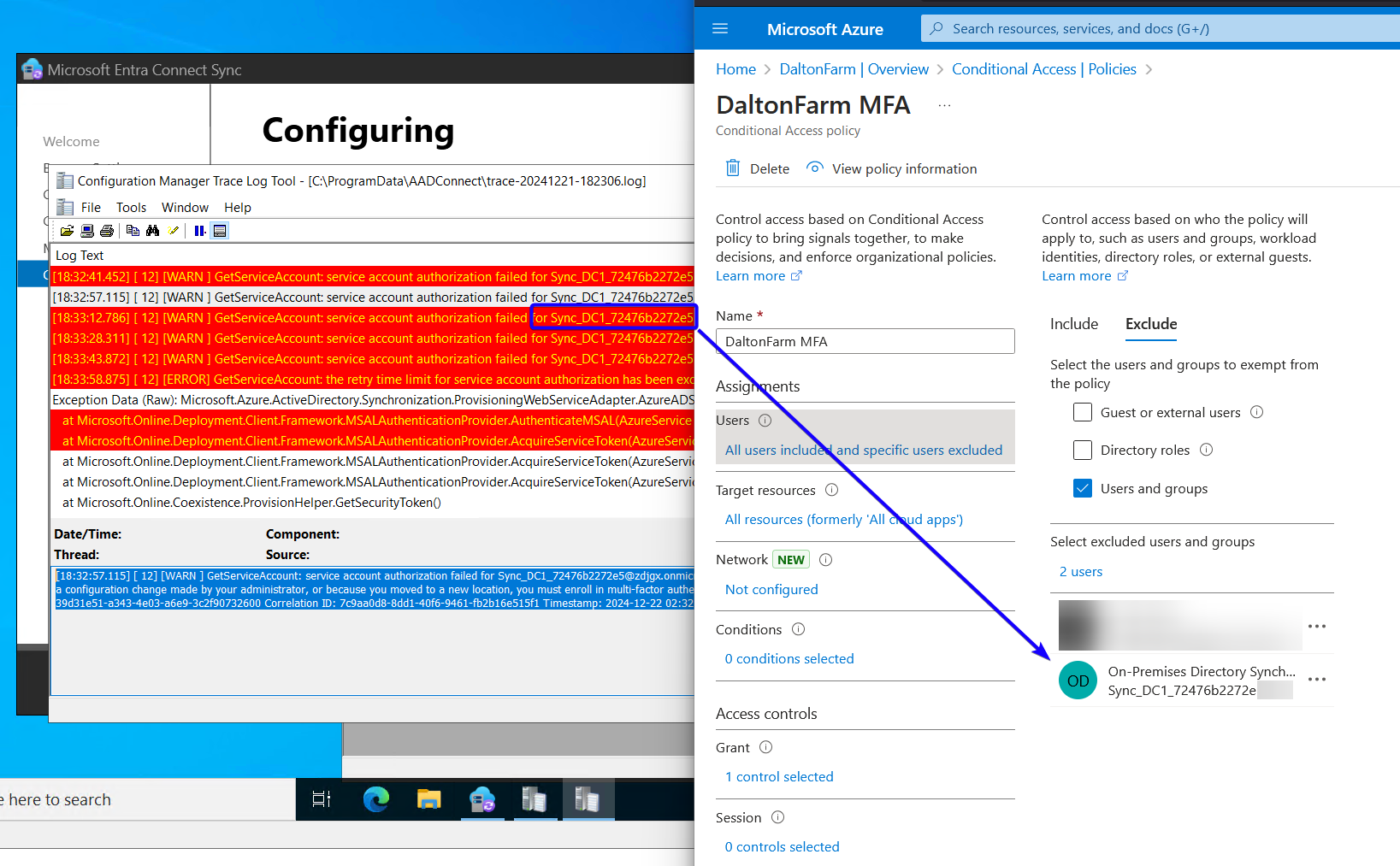
This explains the repeated AADSTS50079 error referencing MFA enrollment.
Resolution
- Open Entra ID
- Go to Conditional Access → Policies
- Locate the MFA enforcement policy
- In Exclude, add the sync service account shown in the logs
- Return to the Entra Connect wizard and click Retry
After excluding the account, the installation completed immediately without further issues.
Why?
Organizations increasingly enforce MFA globally, which is good security practice. However, system-generated service accounts—especially those created during setup processes—may inadvertently fall under Conditional Access policies before they are fully provisioned.
If you encounter issues such as:
- Entra Connect failing to provision the sync account
- AADSTS50079 errors
- “Retrying this operation may help resolve the issue” loops
…you should always verify whether Conditional Access is blocking the process.
Final Thoughts
Hybrid identity setups rely on this sync account to function properly. Ensuring that Conditional Access does not interfere with its creation is critical for:
- Entra Connect deployments
- Co-management onboarding
- Cloud Attach configurations
- General directory synchronization health
A small exclusion can prevent hours of troubleshooting.
Cheers.